
Using VIA
1. What is VIA?
VIA is software for remapping keys in real time. Its main advantage: after changing a key mapping you don't need to recompile or flash the firmware — the change takes effect immediately.
Instant effect: once you remap a key in the UI, the keyboard updates immediately; no flashing needed.
Intuitive: a graphical interface where you assign functions by dragging and dropping.
Full-featured: supports multiple layers, macros, RGB lighting effects and other advanced functions.
Relationship between VIA and QMK
VIA can be seen as a graphical management tool for QMK firmware.
QMK is the underlying engine: it implements all the features in code, but changing the configuration usually means editing code, compiling and flashing — a high barrier.
VIA is the control layer: it wraps QMK's complexity in a visual interface so you can adjust the keyboard easily. All changes are still executed by the QMK firmware.
How to use VIA
The workflow looks like this:
Check firmware support: the keyboard firmware must include VIA support.
Connect the keyboard: plug it into the computer with a cable.
Open the configuration site: open your browser and go to via.micah.vip to start configuring.
Compatibility notes for different keyboards:
Keyboards from us: this site detects them directly, no extra configuration needed.
Keyboards from other sources: if the keyboard isn't detected automatically, download the matching JSON file from the manufacturer's website, then import it manually on VIA's "Design" tab.
2. Importing a JSON file in VIA
If you use a keyboard sold by CZMao you can skip this step — it is detected automatically.
Open via.micah.vip
Click Settings (the gear icon) and enable "Show Design Tab".
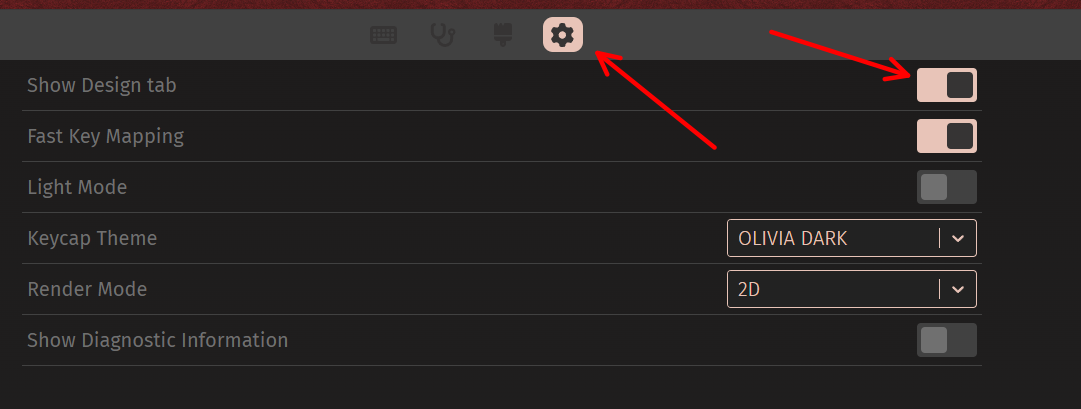
- Click the brush icon (Design) to switch to the Design tab, then click Load and pick the JSON file for your keyboard.

- Go back to the Configure tab, click "Authorize Device" and select your keyboard.
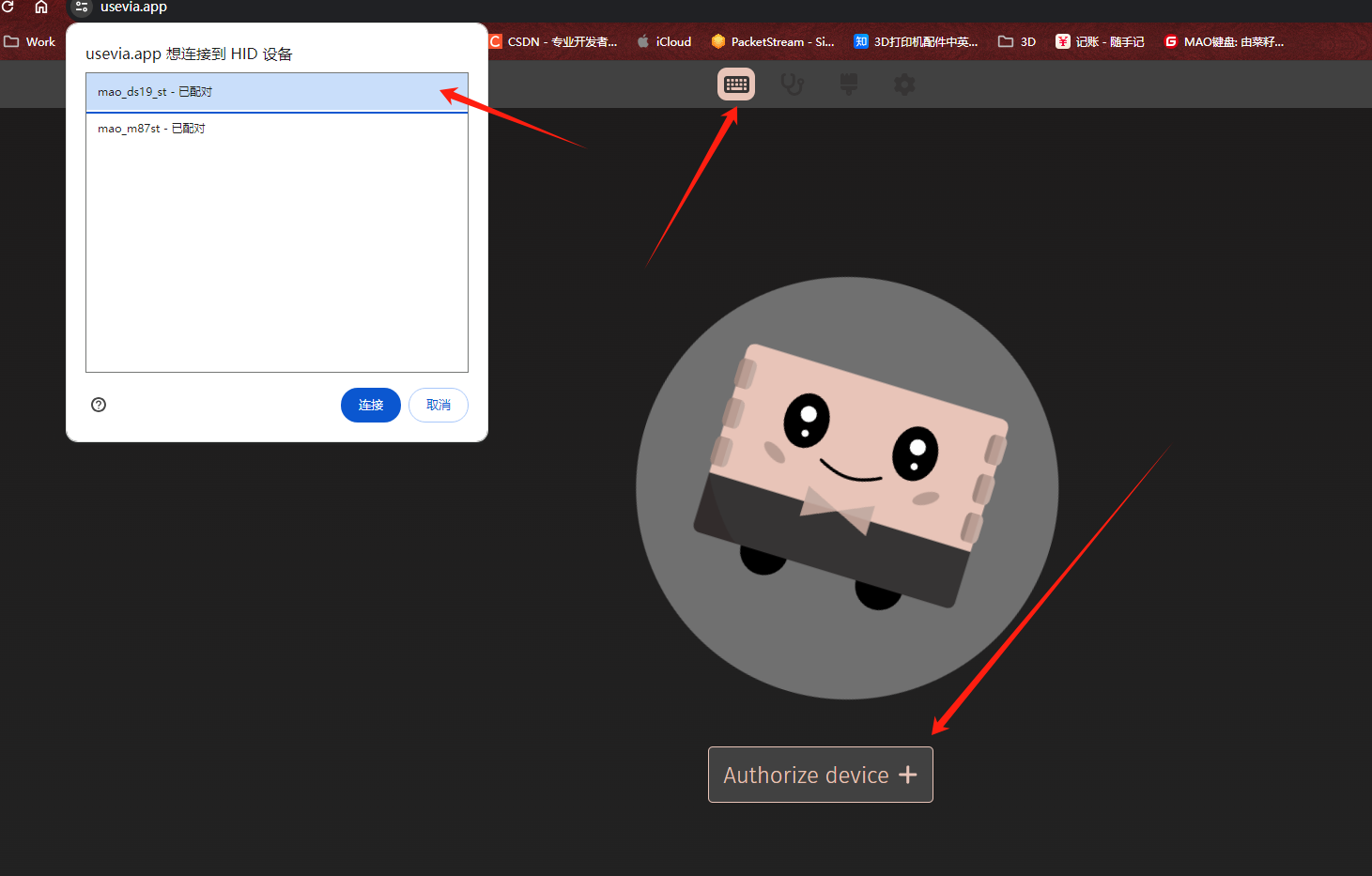
- After confirming, the keyboard layout appears and you can remap as you like.
3. VIA macros
Recording a macro
Open the VIA page.
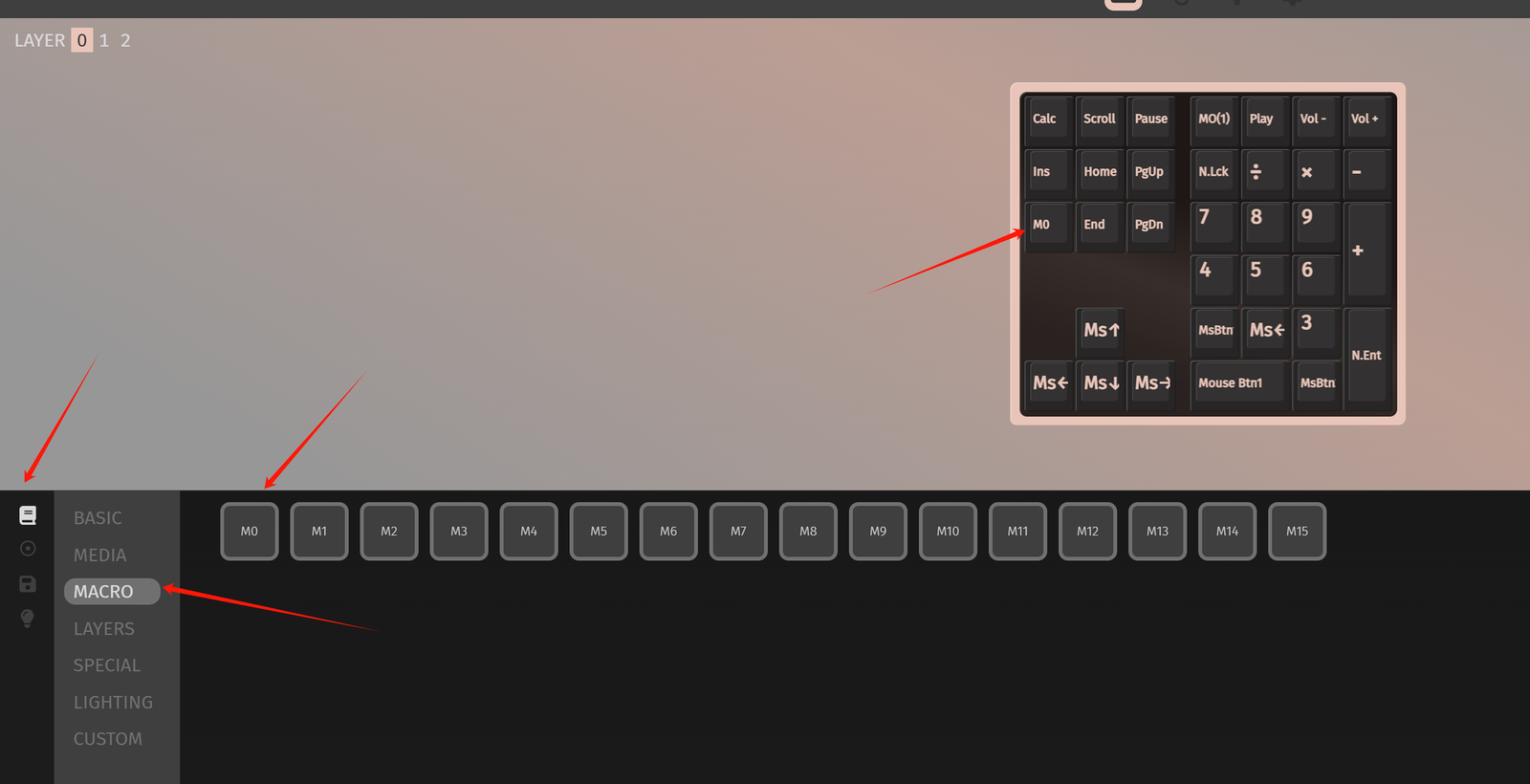
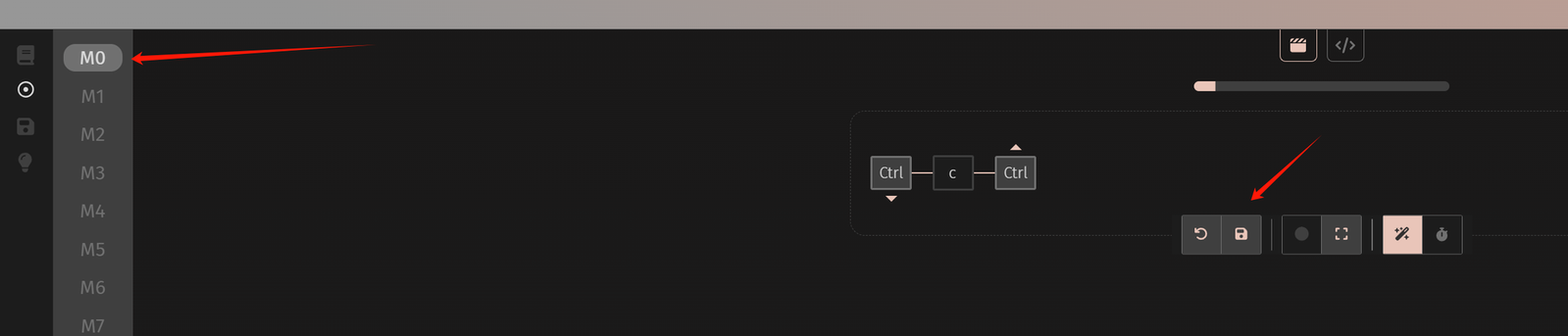
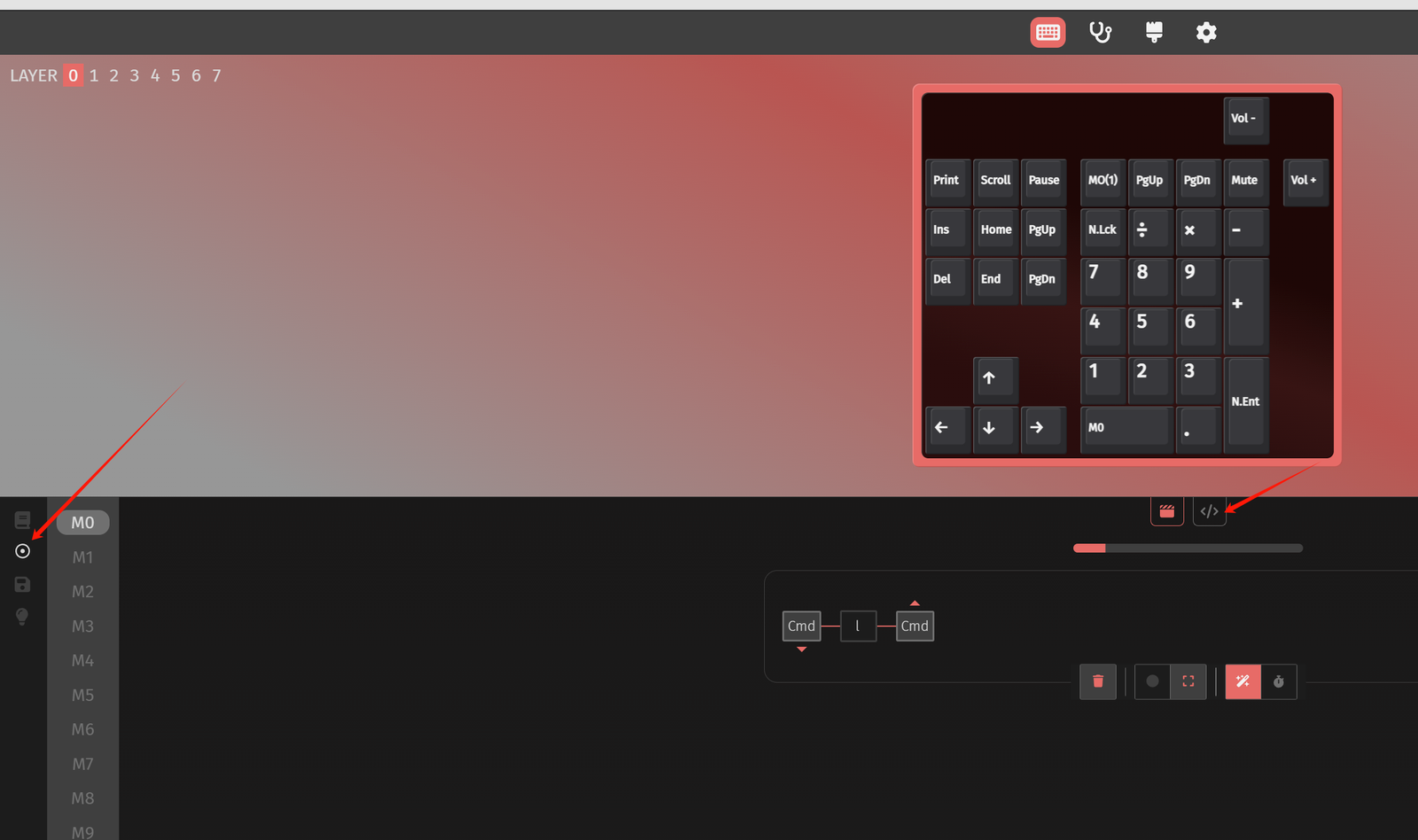
Select the macro buttons on the left as shown — M0~M15, 16 macros in total.
Click Full Screen to enter full-screen mode; key recording only works in full-screen mode.
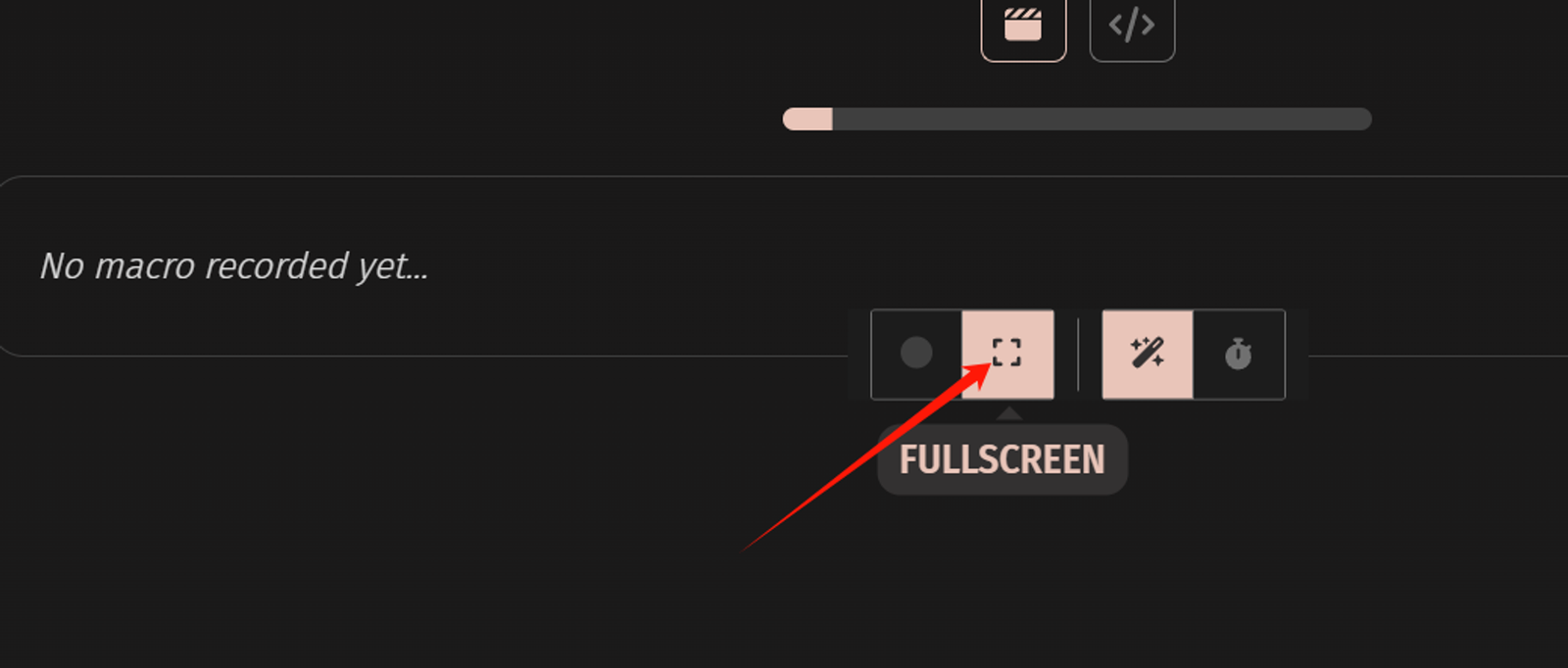
In full-screen mode, click the record button below to capture the keys you press.
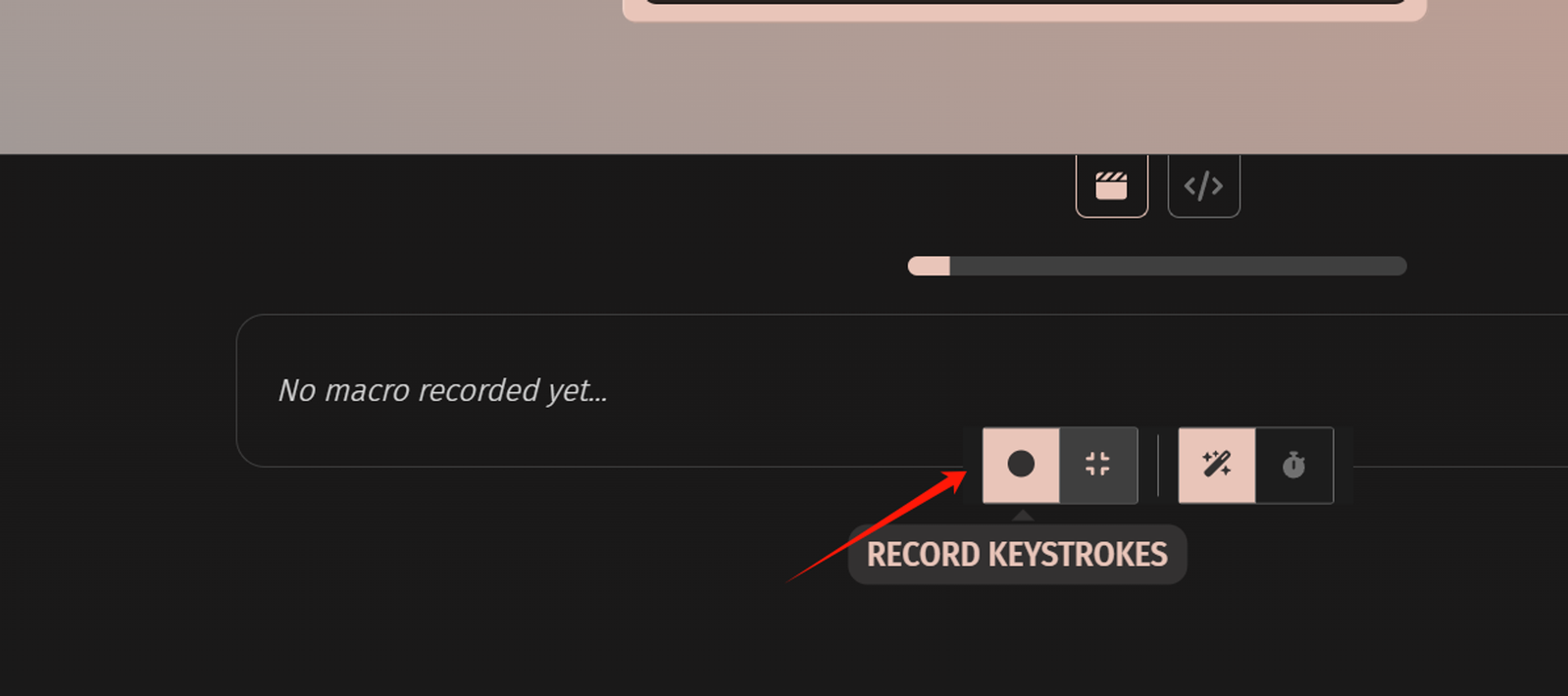
Taking Ctrl+C (copy) as an example: press Ctrl+C, release, and it shows up as below. Press the stop button to finish recording, then exit full-screen mode.
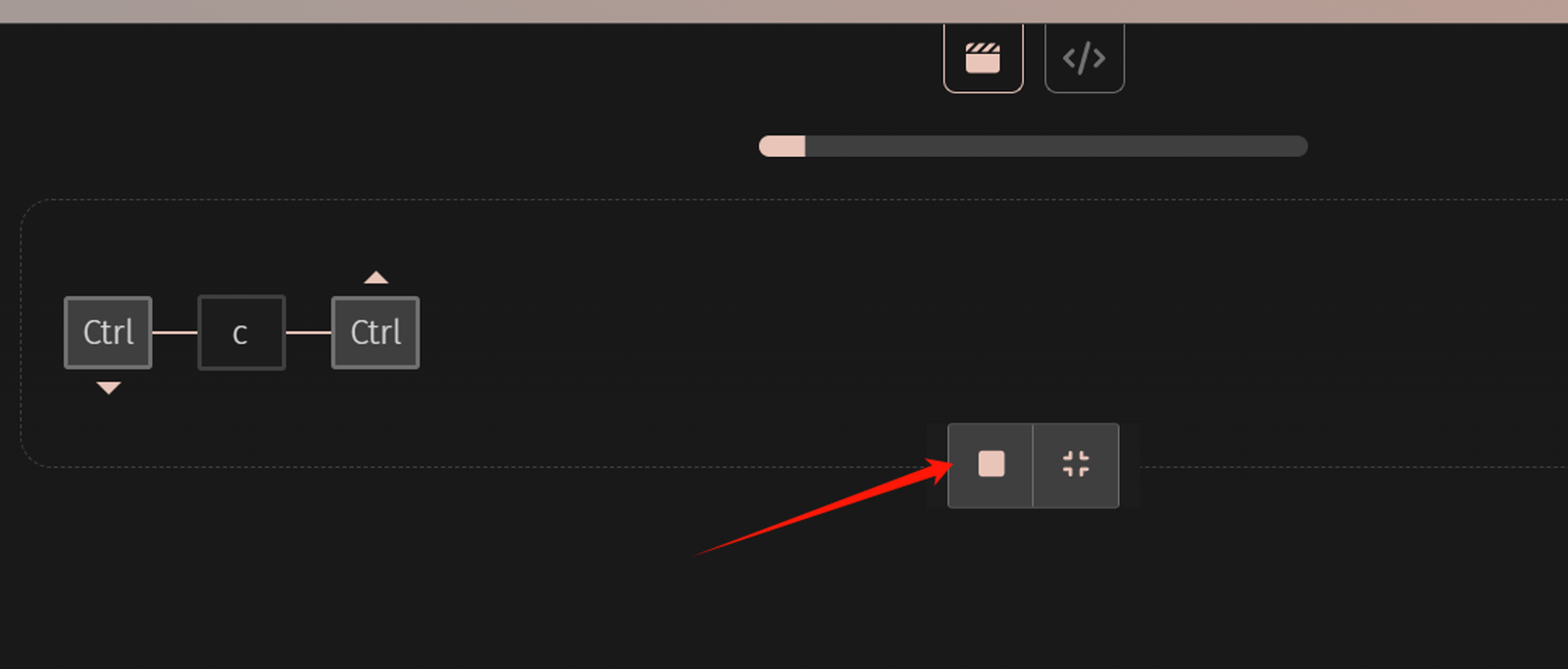
Click Save Changes and the macro is saved — in the screenshot it is saved as M0, i.e. macro 0.
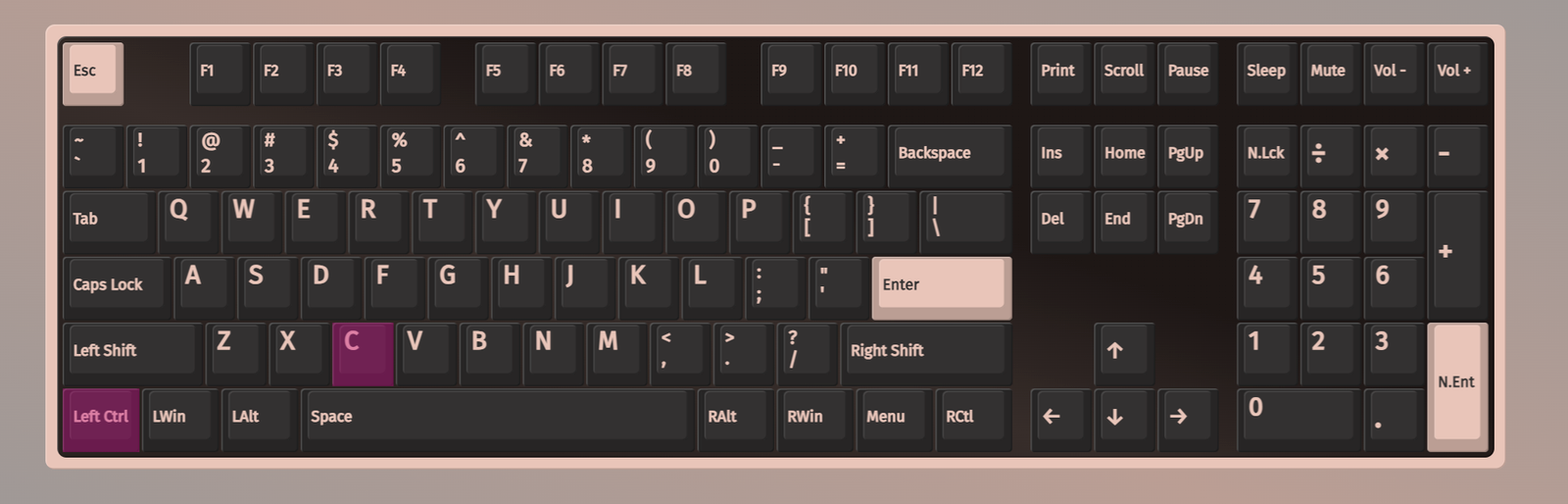
Back on KEYMAP, click Macro to enter the macro keys and assign the macro you saved (macro 0) to the key you want.
As shown, I assigned it to the Del key — pressing it now triggers Ctrl+C.
Writing a macro by hand
- Win+L to lock the screen
As shown below, click the button on the right and paste
{KC_LGUI,KC_L}
then click Save — it takes effect immediately.
| Function | Combo | Macro content |
|---|---|---|
| Winlock | Win+L | |
| Ctrl+Shift+X |
Using the Any key
The Any key in QMK
In the QMK context, the "Any key" (KC_ANY or ANY()) is not a standard keycode with a fixed function. What it means depends on which QMK flavour you use (mainly VIA or VIAL).
In short
In VIA:
ANYis a placeholder / spare "custom key". When you can't find the function you want in the graphical UI, pickANYand type in a keycode or macro name QMK understands. Think of it as a code injector that lets you use any function VIA's menus don't expose.In VIAL:
ANYis a core part of Tap Dance. VIAL lets one key output completely different things on tap, double-tap, hold, and so on. HereANYcan type complex strings, key combos, or even control the mouse — in short, one key doing many jobs.
VIA vs VIAL
| Feature | VIA | VIAL |
|---|---|---|
| Purpose | A "code entry point" for unusual / rarely used functions | The core tool behind Tap Dance — one key, many meanings (tap = A, double-tap = B) |
| Main use | Enter special functions that aren't in the QMK standard but are implemented in the firmware | Assign different actions to tap, double-tap, hold on the same key |
| Example | Type MACRO_F6 from your firmware into the ANY box | In VIAL's Tap Dance options, pick ANY actions for each trigger |
Summary
When someone says "use the Any key for this", they usually mean using the ANY option in the VIA/VIAL interface to type in a custom function name or keycode, achieving behaviour the normal menus don't offer.
How to use it
Pick a key and change it to ANY.
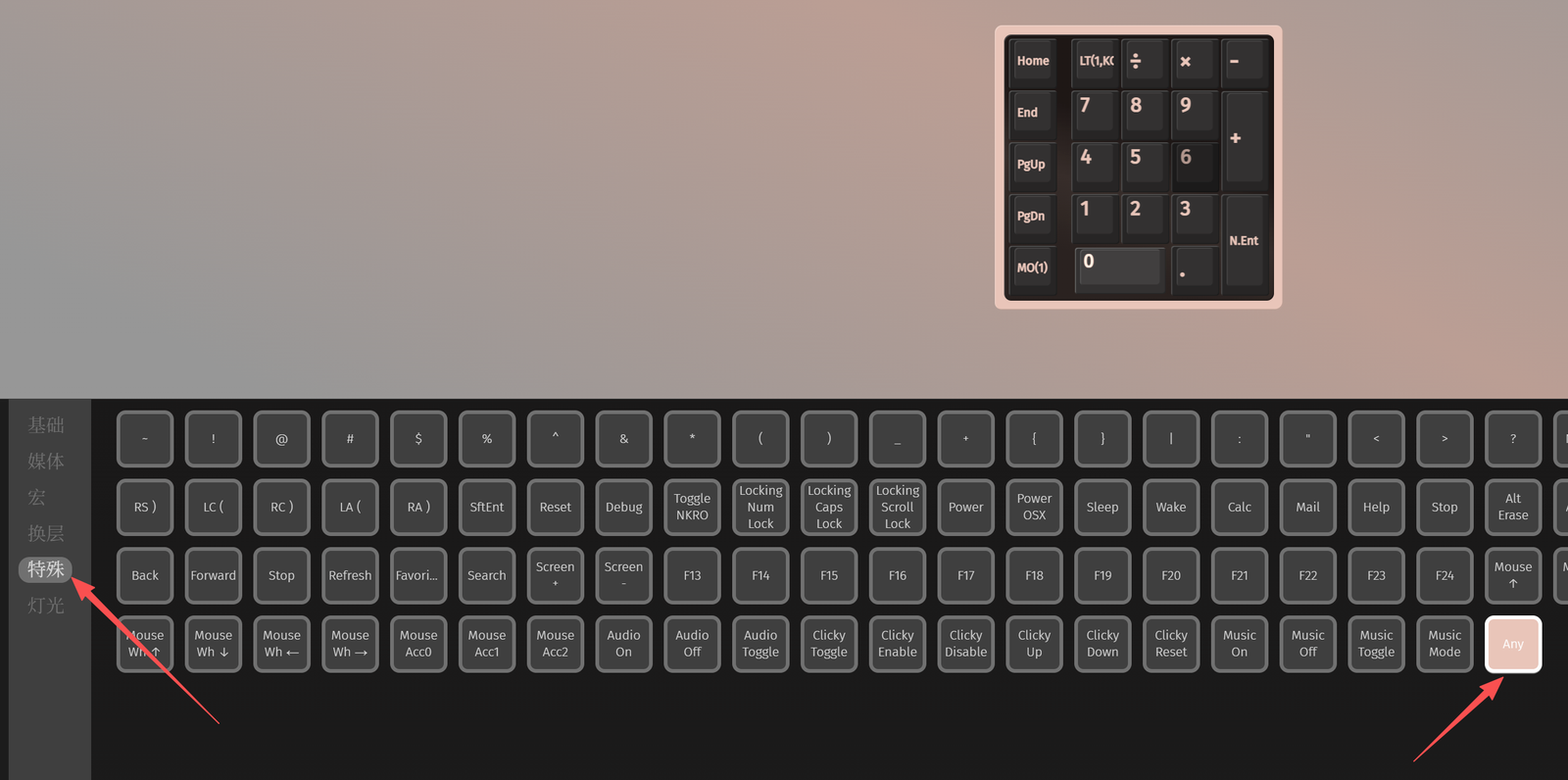
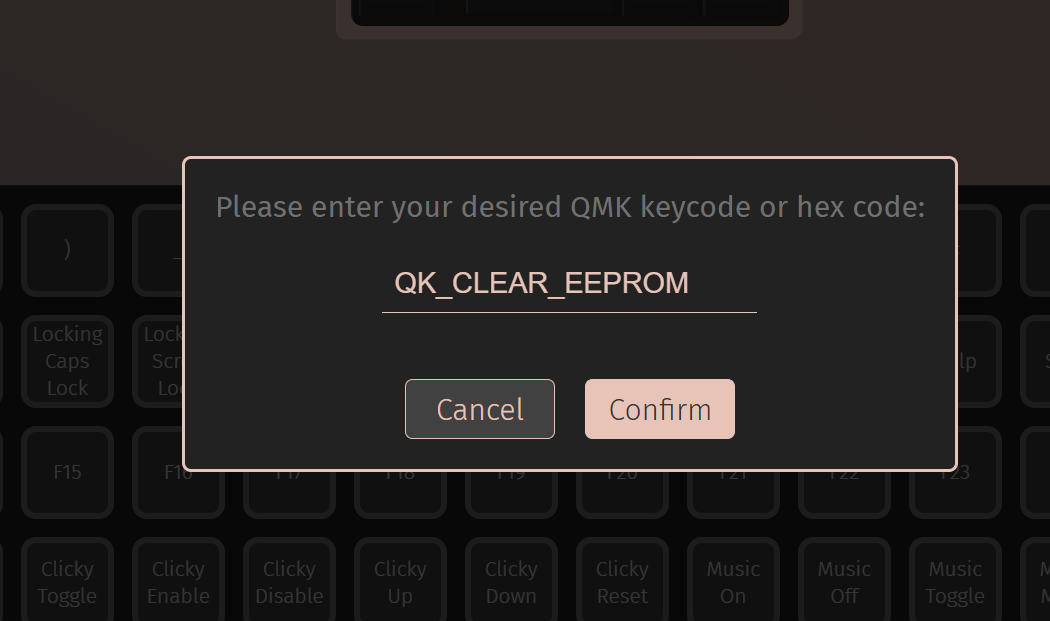
Enter the keycode below and confirm.
QK_CLEAR_EEPROM
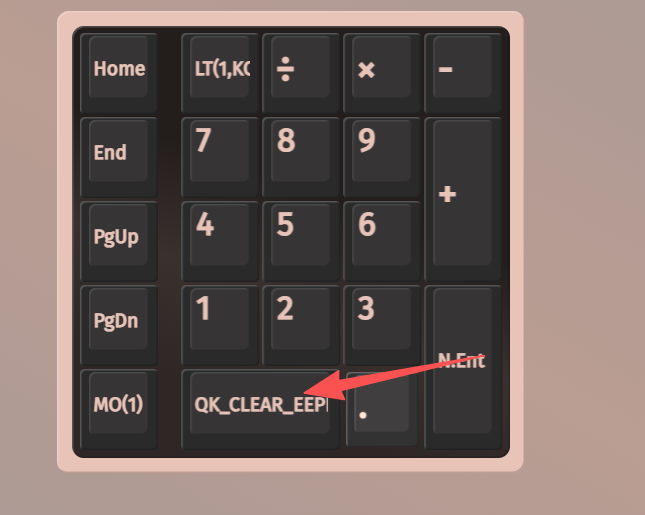
Pressing the remapped key now resets the keyboard to factory defaults.
Handy Any keycodes
| Function | Keycode | Notes |
|---|---|---|
| Copy | LCTL(KC_C) | |
| Paste | LCTL(KC_V) | |
| Factory reset | QK_CLEAR_EEPROM |
评论 / 提问 (填个昵称就能留言,无需注册;邮箱选填,填了能收到回复通知)